
Previews and keyboard shortcuts
Find a tracked file, inspect its contents, and compare changes to images, documents and models.
Find a command or file
| Action | macOS | Linux |
|---|---|---|
| Find a tracked file | Command-P | Ctrl+P |
| Search commands | Command-Shift-P | Ctrl+Shift+P |
| Show keyboard shortcuts | Command-? | Ctrl+? |
In Quick Open File…, choose the current worktree or a revision, type part of the path, and press Return on a match. A revision search pins the resolved commit. Escape leaves the current view in place. The Command Palette searches actions by name and explains when an action is unavailable. Linux also has a Menu at the top left, accessible with F10.
Compare two images
Open an image from a commit’s changed-file list. Side by side preserves the original dimension relationship. Overlay varies the After image’s opacity. Wipe puts Before on the left and After on the right of a draggable divider. Pan or zoom to inspect the same area on both sides.
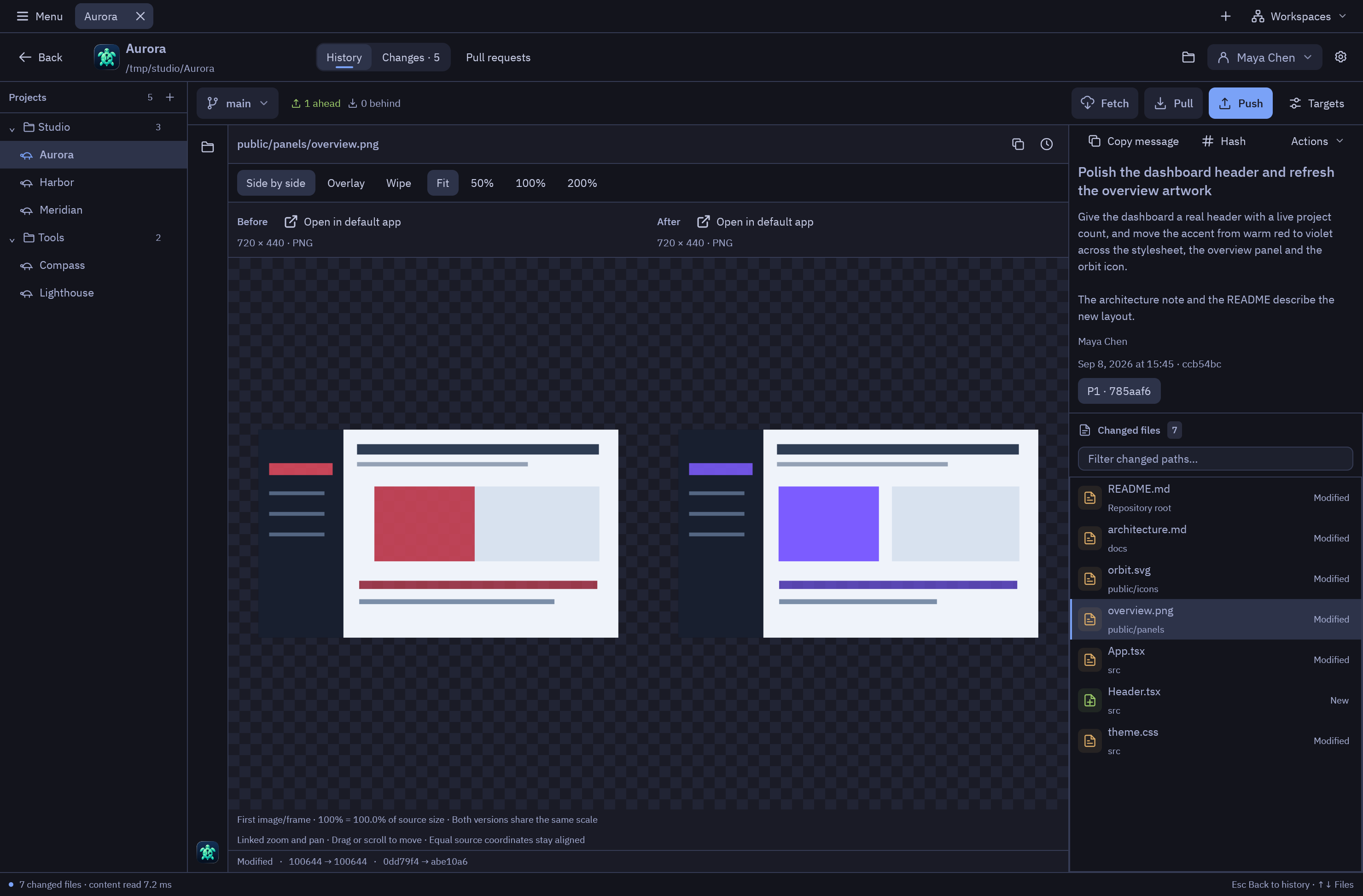
A 100% zoom label refers to the decoded comparison preview, whose longest edge is bounded at 1,600 pixels. Look at the source dimensions when you need the original size. GIF supports bounded playback and frame stepping.
Inspect documents and models
- Markdown and Mermaid. Choose the rendered view for headings, lists, tables, supported diagrams and local images from the captured revision. Use Source or Diff to review the exact stored text.
- PDF. Move between pages to inspect rendered content and available extracted text. Image-only pages can lack extractable text.
- 3D. Orbit, pan or zoom the supported geometry. Link both cameras to compare versions at the same position, or unlink to inspect one side. STL, OBJ, FBX, GLB and selected 3MF and STEP content have bounded support. Unsupported geometry or resources are identified in the preview.
- Other formats. Many archive, media and office formats show metadata. When available, the platform’s explicit preview action opens a captured copy in an external viewer.
Preview an LFS file
GitTurtle uses verified local Git LFS objects when available. If only a pointer is present, inspect the object ID and size. You can review a download for that single object if you have Git LFS installed and a configured source. Browsing alone does not fetch it. The download is capped at 32 MiB and verified against its SHA-256 identity.